
Introduction
In the Salesforce ecosystem, moving metadata from one org to another is a common requirement during development, testing, or migration. One of the easiest ways to achieve this is by using Unmanaged Packages.
An unmanaged package allows developers and administrators to distribute components such as Apex classes, flows, custom objects, Lightning components, and other metadata between Salesforce organizations.
Unlike managed packages, the components inside an unmanaged package remain editable in the destination org. This makes unmanaged packages particularly useful for development sharing, backups, proof-of-concept deployments, and one-time migrations.
In this guide, we will walk through the step-by-step process of deploying an unmanaged package from a source org to a target org.
Prerequisites
Before creating and deploying an unmanaged package, ensure you have the following access and permissions.
1. Access to Source Org
You must have login credentials and administrative access to the Salesforce org where the package will be created.
2. Access to Target Org
You also need access to the destination org where the package will be installed.
3. Required Permissions
Ensure your Salesforce user has the following permissions:
- Create Packages
- Download AppExchange Packages
- Customize Application
- Modify Metadata
Without these permissions, you may not be able to create or install packages.
Step 1: Create an Unmanaged Package in the Source Org
The first step is to create the package that will contain all the components you want to migrate.
Steps to create a package
- Go to Setup
- In the Quick Find box, search for Packages
- Click Packages
- Click New
- Enter the Package Name
- Add a Description
- Select Unmanaged Package
- Click Save
Once saved, Salesforce will create a container where you can add metadata components.
Step 2: Add Components to the Package
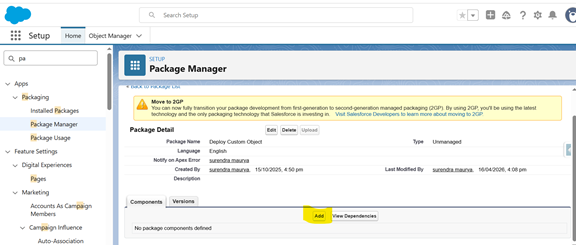
After creating the package, you must include the components that need to be migrated.
Steps to add components
- Open the newly created package
- Click Add Components
- Select the component type
Common components include:
- Apex Classes
- Apex Triggers
- Custom Objects
- Lightning Components
- Flows
- Visualforce Pages
- Custom Fields
- Select the components you want to include


- Click Add to Package
It is important to ensure all dependencies are included, otherwise installation in the target org may fail.
Step 3: Upload the Package
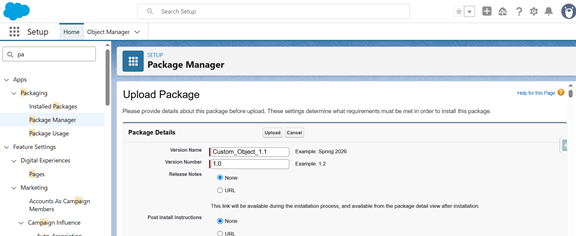
Once all required components are added, the package must be uploaded to generate a version.
Steps to upload
- Open the package
- Click Upload
- Enter the version name
- Provide version notes (optional but recommended)
- Click Upload
Salesforce will process the package and create a versioned upload.
Depending on the number of components, the upload may take a few minutes to complete.
Step 4: Get the Installation Link
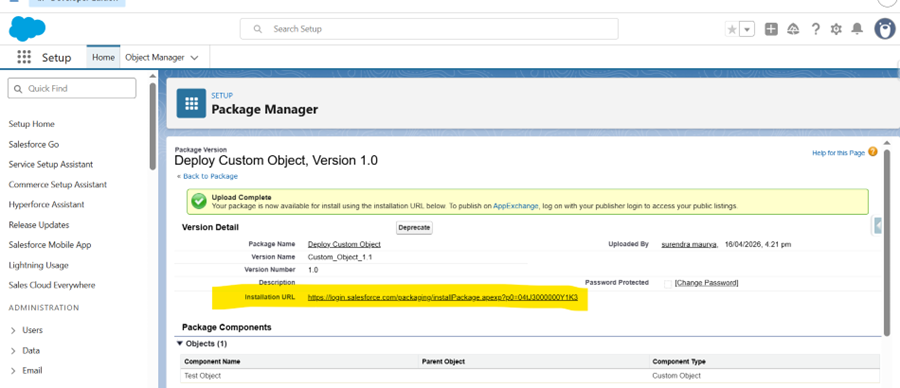
After the upload process finishes, Salesforce generates an installation URL.
This URL allows the package to be installed in any Salesforce org that has access to the link.
Steps
- Open the uploaded package version
- Locate the installation URL
- Copy the URL
You will use this link to install the package in the target org.
Step 5: Install the Package in the Target Org
Now that you have the installation link, the next step is installing the package in the destination org.
Installation process
- Open the installation URL
- Login to the target Salesforce org
- Select the installation type
Installation options usually include:
- Install for Admins Only
- Install for All Users
- Install for Specific Profiles
- Click Install
Salesforce will begin installing the package and its components into the target org.
Step 6: Post-Installation Steps
After the installation completes, some additional steps may be required to ensure everything works properly.
Verify Components
Check if all components have been installed correctly:
- Apex classes
- Objects
- Flows
- Lightning components
Assign Permissions
Some components require specific permissions or permission sets.
Make sure users who need access are assigned the appropriate permissions.
Activate Flows
Flows are often installed in inactive mode.
You must manually activate the flows after installation.
Important Notes
There are a few key things to understand when working with unmanaged packages.
Components Are Editable
All metadata deployed through an unmanaged package can be modified in the destination org.
This provides flexibility but also means changes cannot be centrally controlled.
No Upgrade Support
Unmanaged packages do not support version upgrades.
If updates are required, you must manually deploy the updated components.
Best for One-Time Deployment
Unmanaged packages are best suited for:
- Development sharing
- Proof of concepts
- Backups
- One-time metadata transfers
For continuous deployment, other tools may be more suitable.
Common Issues and Fixes
During deployment, you may encounter some common issues.
Missing Dependencies
Sometimes a component relies on another component that was not included in the package.
Solution:
Ensure all dependencies are added before uploading the package.
Apex Test Failures
Salesforce requires minimum 75% Apex code coverage.
Solution:
Run tests and ensure the coverage meets Salesforce requirements.
Flow Issues
Flows may not function correctly if they are not activated.
Solution:
Activate the flows after installation.
Permission Issues
Users may not be able to access certain components.
Solution:
Assign the correct profiles or permission sets.
Conclusion
Unmanaged packages offer a simple and flexible way to move metadata between Salesforce organizations. They are particularly useful for development environments, quick migrations, and sharing configurations across teams.
However, because unmanaged packages lack version control and upgrade capabilities, they are not ideal for long-term application distribution.
For more advanced deployment workflows, organizations often use:
- Change Sets
- Salesforce CLI (SFDX)
- DevOps tools
- CI/CD pipelines
Choosing the right deployment method depends on your development workflow, team size, and release management strategy.