

FlexCards in OmniStudio provide a powerful way to display Salesforce data dynamically on the UI. While FlexCards commonly use DataRaptors and Integration Procedures as data sources, there are scenarios where SOSL (Salesforce Object Search Language) is more effective. SOSL is particularly useful when you need to search across multiple records or perform text-based searches efficiently.
In this article, we will walk through how to use SOSL in a FlexCard to retrieve Account data and display it on the screen.
Why Use SOSL in FlexCard?
SOSL is designed for searching text across multiple objects or fields quickly. Using SOSL in a FlexCard is beneficial when:
- You need fast text-based searching
- You want to retrieve records based on search terms
- You need to fetch data without complex filters
- Performance is a priority
SOSL works well when searching by names, keywords, or other text fields.
Use Case Overview
In this example, we will create a FlexCard that uses SOSL as its data source to retrieve Account records. The fetched data will then be displayed on the FlexCard canvas using standard UI elements.
Step 1: Create a FlexCard and Select SOSL as Data Source
Start by creating a new FlexCard.
- Open FlexCard Designer
- Create a new FlexCard
- Navigate to the Data Source section
- Set Data Source Type to SOSL
After selecting SOSL, configure the SOSL query based on your requirement to retrieve Account data.
Once configured:
- Click on Save & Fetch
Verify that the data is successfully returned
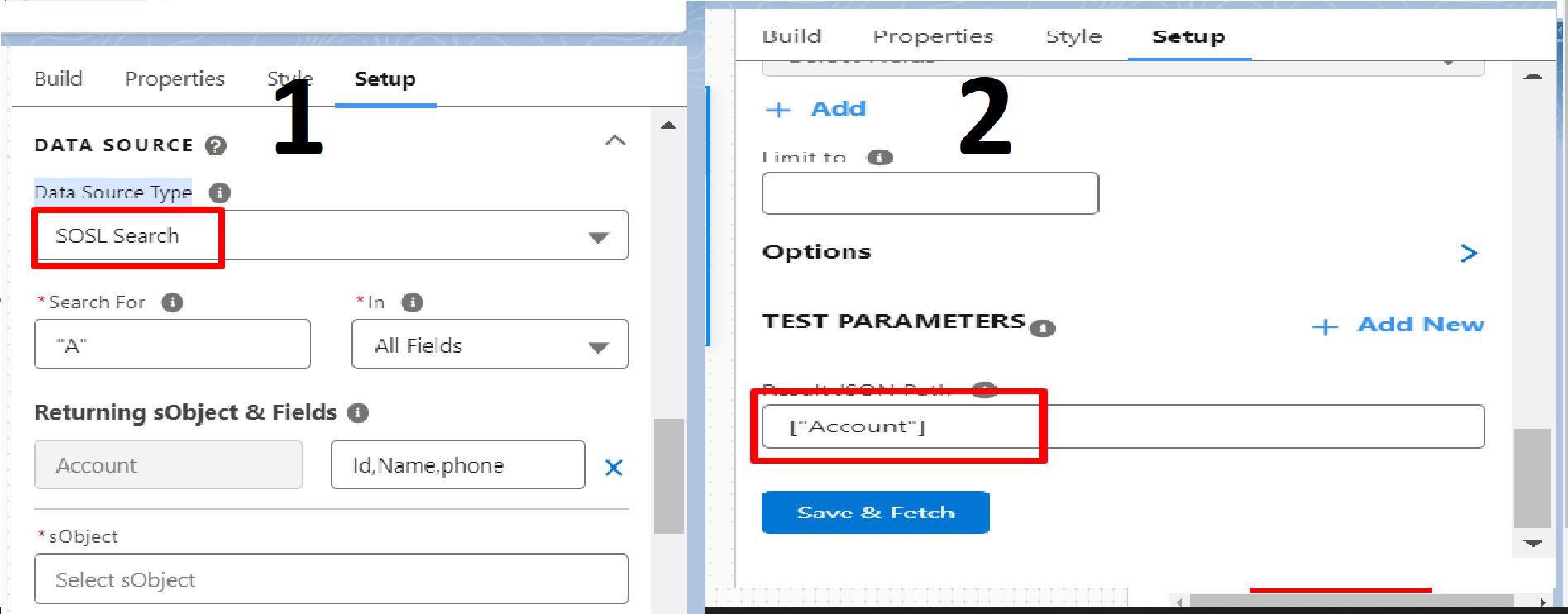
This step confirms that the SOSL query is working correctly.
Step 2: Build the FlexCard UI
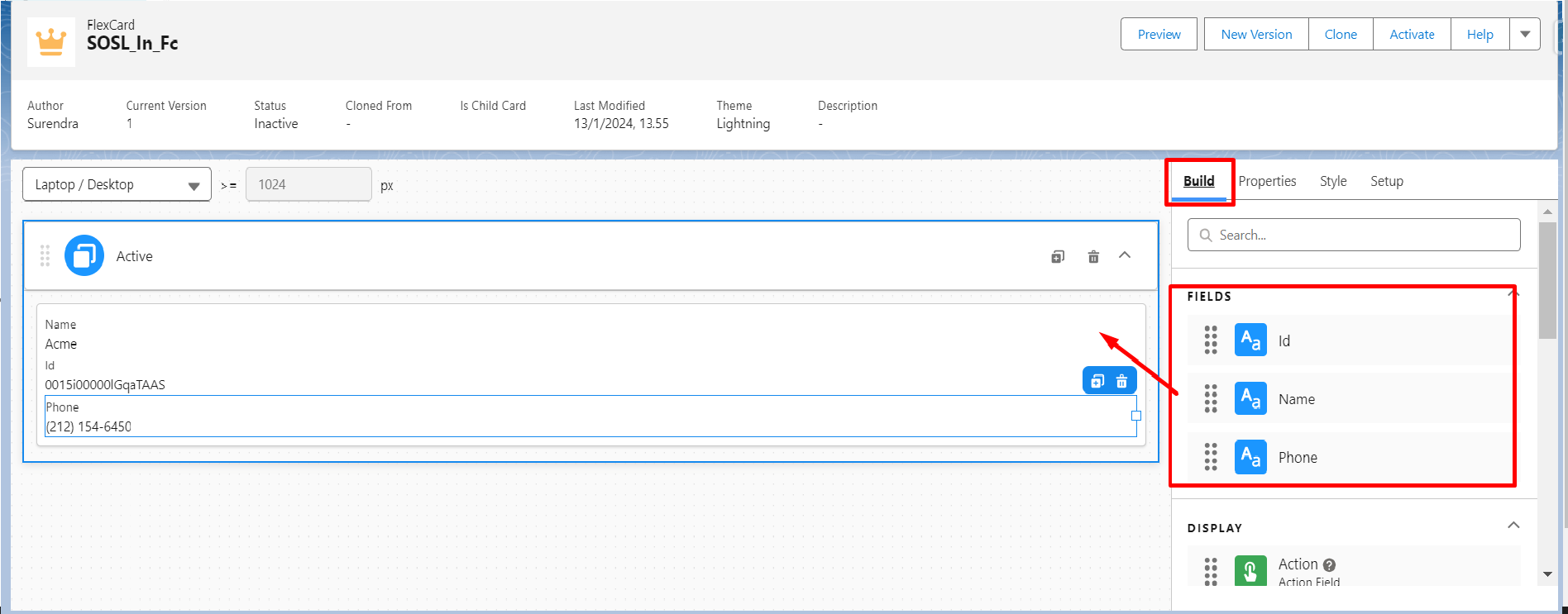
After fetching the data, move to the Build section of the FlexCard.
- Navigate to Build > Fields
- Drag required fields onto the FlexCard canvas
- Bind the fields to the SOSL response data
For example, you can display:
- Account Name
- Industry
- Phone Number
The dragged fields automatically map to the returned SOSL data nodes.
Step 3: Configure Field Mapping
Ensure the fields are correctly mapped to the SOSL response.
- Verify the data path for each field
- Use the data tree to confirm field availability
- Adjust field labels and formatting as required
Proper mapping ensures that the FlexCard displays accurate and consistent data.
Step 4: Preview the FlexCard
Once the UI configuration is complete:
- Click Preview
- Validate that Account data appears correctly
- Confirm that the SOSL query returns expected results
- Check for performance and formatting issues
Previewing helps catch mapping or query errors early.
Best Practices for Using SOSL in FlexCard
When using SOSL in FlexCards, follow these best practices:
- Keep SOSL queries efficient and focused
- Avoid retrieving unnecessary fields
- Use SOSL for search-based use cases only
- Test performance with large datasets
- Ensure proper field-level security access
These practices help maintain optimal performance and user experience.
Common Use Cases
SOSL in FlexCards is commonly used for:
- Global search functionality
- Keyword-based record lookup
- Quick customer or account searches
- Lightweight data retrieval for dashboards
- Fast UI response scenarios
Conclusion
Using SOSL as a data source in FlexCards is a simple yet powerful way to retrieve Salesforce data efficiently. By selecting SOSL in the data source configuration and binding fields to the UI, you can quickly build responsive FlexCards for search-based use cases.
This approach reduces complexity while delivering fast and accurate results, making it an excellent option for scenarios where text-based searching is required.