

In OmniStudio (Vlocity), Exposed Attributes in a FlexCard allow you to pass data dynamically from a parent component—such as an OmniScript, another FlexCard, or a Lightning App Page—into a FlexCard. This makes FlexCards reusable, dynamic, and context-aware instead of hard-coded.
In this article, we’ll understand what Exposed Attributes are, why they are used, and how to configure and use them step by step.
What Are Exposed Attributes in FlexCard?
Exposed Attributes are input parameters of a FlexCard. They act like variables that receive values from an external source. Instead of fetching data internally every time, the FlexCard can accept values such as:
- Record Id (AccountId, ContactId, etc.)
- Any custom field value
- Context data from OmniScript or another FlexCard
Once exposed, these attributes can be used inside:
- Data Sources
- Conditional Visibility
- Text Fields
- Actions
This makes the FlexCard highly reusable across different pages and contexts.
Why Use Exposed Attributes?
Using Exposed Attributes provides several benefits:
- Makes FlexCards reusable across multiple records
- Avoids hardcoding record IDs
- Enables communication between OmniScript and FlexCard
- Improves performance by passing context instead of refetching data
- Helps in dynamic UI rendering based on input values
Steps to Use Exposed Attributes in FlexCard
Step 1: Open or Create a FlexCard
- Go to OmniStudio → FlexCards
- Open an existing FlexCard or create a new one
Switch to Edit Mode
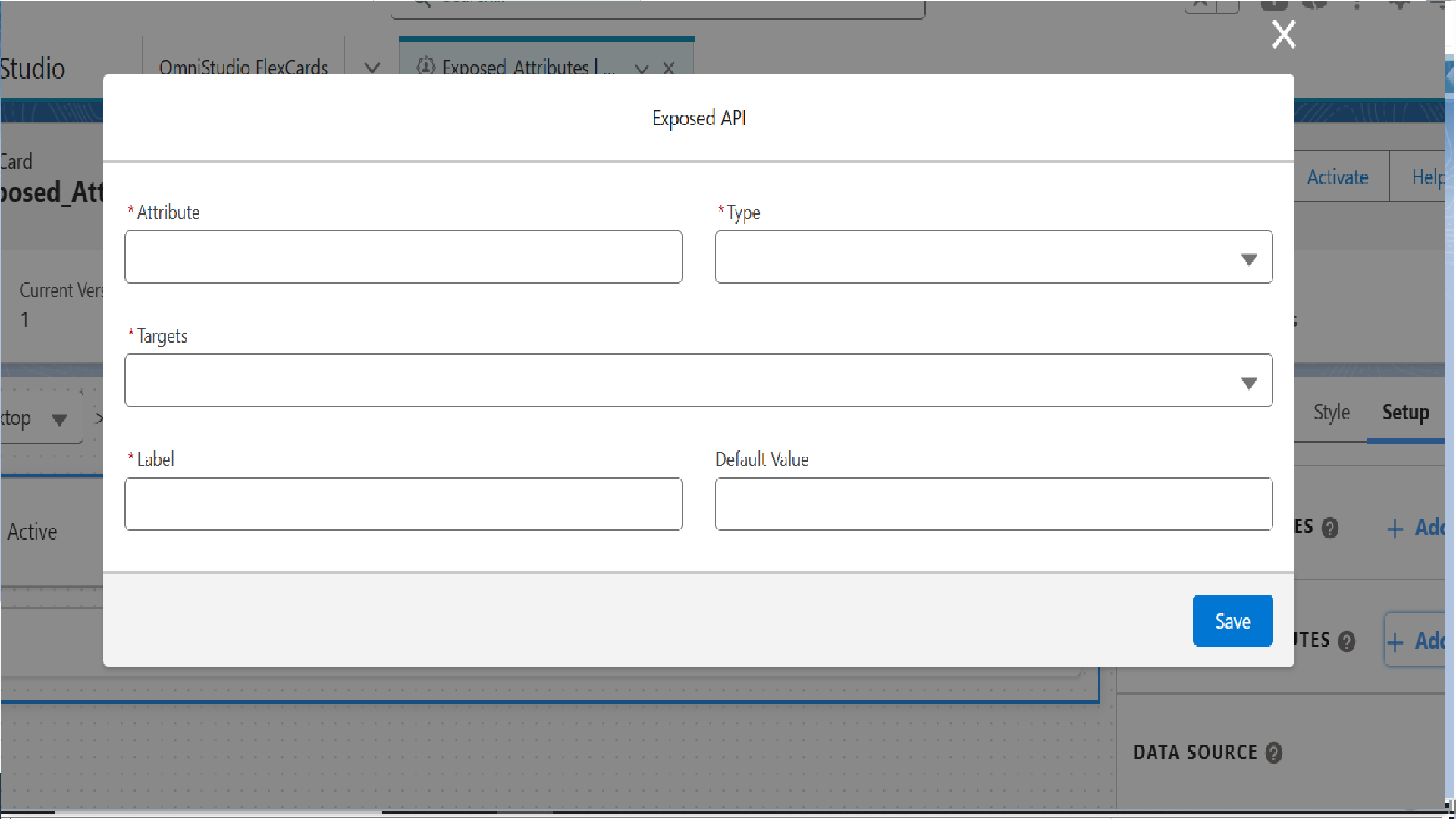
Step 2: Add an Exposed Attribute
- Click on the Setup tab (right panel)
- Scroll to Exposed Attributes
- Click Add New
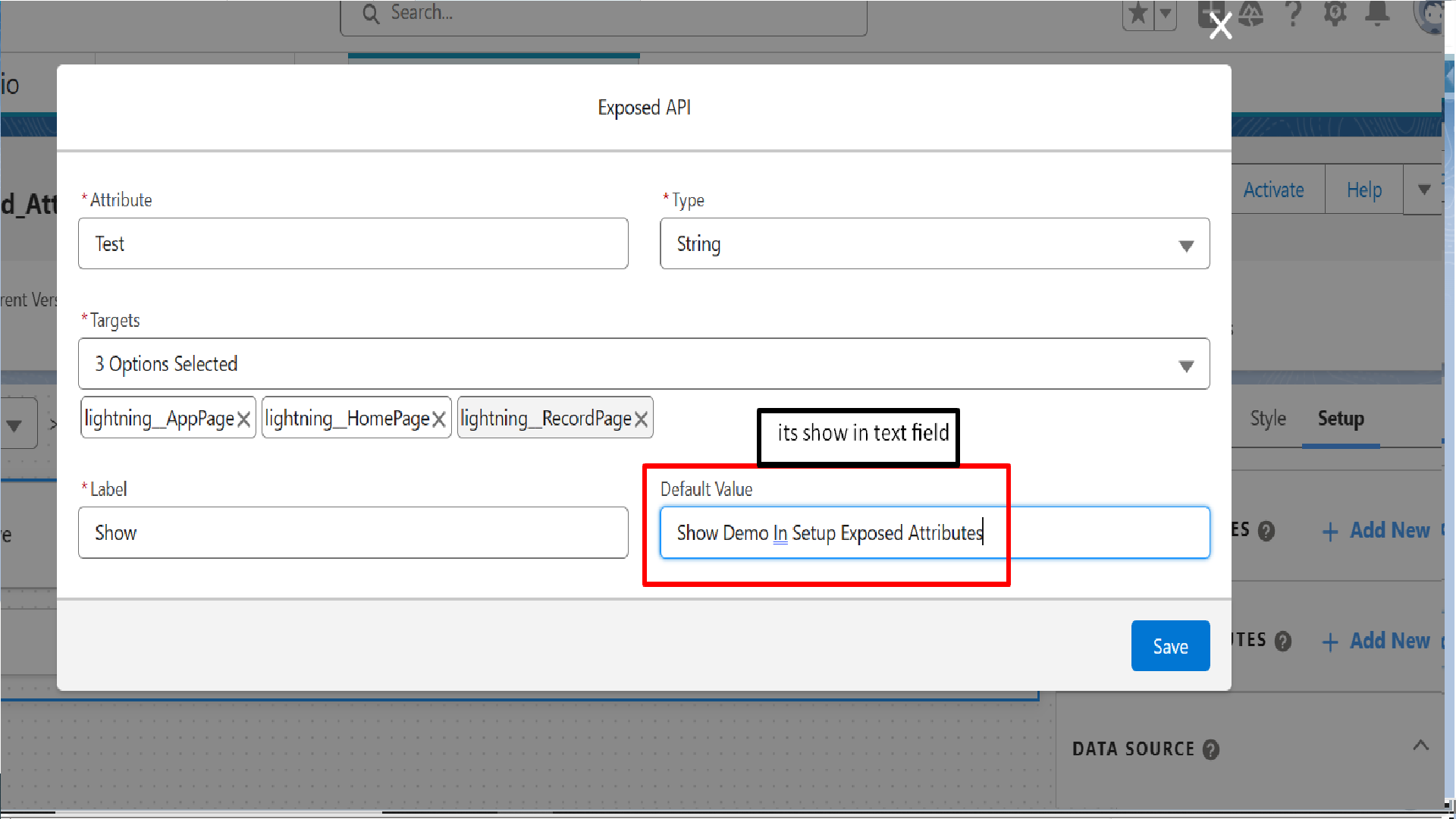
Now define the attribute:
- Name: Example – recordId
- Type: String (most commonly used)
- Default Value (optional): Can be left blank or set for testing
Save the FlexCard after adding the attribute.
Step 3: Use Exposed Attribute in Data Source
Exposed Attributes are commonly used in Data Sources to fetch record-specific data.
- Go to the Data Source section
In the Input Map, reference the exposed attribute using:
{{recordId}}
- Map it to the required parameter (e.g., Id in DataRaptor or Integration Procedure)
This ensures data is fetched dynamically based on the value passed from outside.
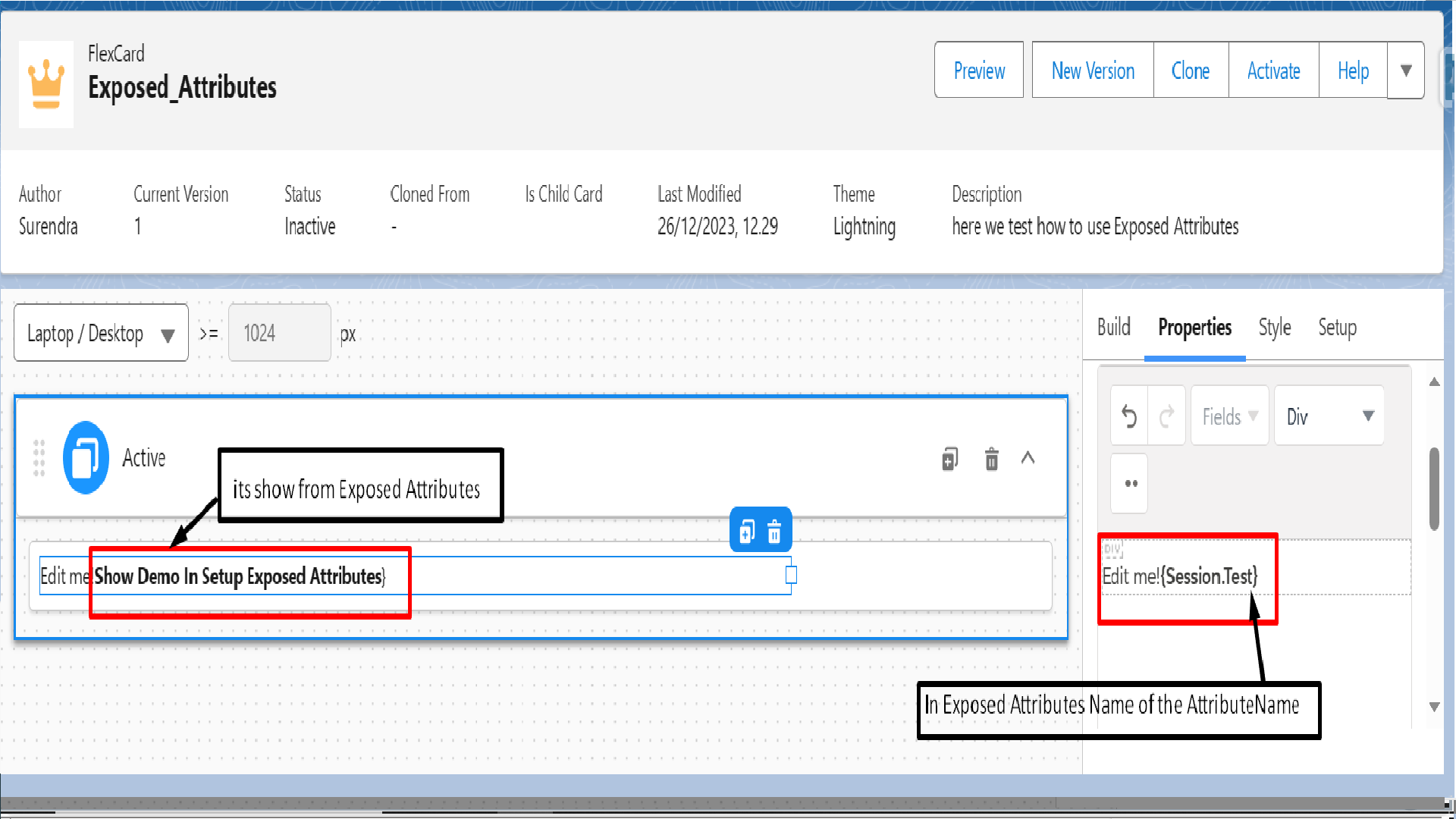
Step 4: Use Exposed Attributes in FlexCard Fields
You can also use exposed attributes directly in UI elements.
Examples:
Text Field value:
{{recordId}}
- Conditional Visibility:
- Show component only if recordId != null
- Actions:
- Pass the attribute to another OmniScript or FlexCard
This allows UI behavior to change dynamically.
Step 5: Pass Exposed Attribute from OmniScript
When using a FlexCard inside an OmniScript:
- Drag the FlexCard element into the OmniScript canvas
- Go to Element Properties
- Under Input Parameters, map:
- Key: recordId
- Value: %ContextId% or any OmniScript variable
Now the FlexCard receives the record Id from the OmniScript context.
Step 6: Pass Exposed Attribute from Another FlexCard
If calling a FlexCard from another FlexCard:
- Add the child FlexCard as an element
In the Input Parameters, pass a value like:
{{Id}}
- Map it to the exposed attribute name
This allows parent-child FlexCard communication.
Common Use Cases of Exposed Attributes
- Showing Account details based on selected Account
- Reusing the same FlexCard on different record pages
- Passing ContextId from OmniScript to FlexCard
- Controlling UI visibility based on input values
- Calling Integration Procedures dynamically
Best Practices
- Always use meaningful attribute names (e.g., accountId, caseId)
- Keep attribute type consistent with expected value
- Avoid unnecessary default values in production
- Use exposed attributes instead of hardcoded values
- Test using Preview and different record contexts
Conclusion
Exposed Attributes are a powerful feature in FlexCards that enable dynamic data passing and reusability. By defining exposed attributes and passing values from OmniScripts or parent FlexCards, you can build flexible, scalable, and performance-optimized OmniStudio solutions.
Mastering exposed attributes is essential for real-world OmniStudio implementations.