
FlexCards in OmniStudio provide a dynamic way to display data fetched from different sources such as DataRaptors and Integration Procedures. However, there are situations where a data source returns zero records. In such cases, showing a blank screen or broken UI can confuse users. To handle this gracefully, FlexCards provide a feature called Blank Card State.
In this article, we will learn how to use the Blank Card State of a State element in FlexCard and understand how it helps manage scenarios where no data is returned.
What Is Blank Card State?
The Blank Card State is used when a FlexCard’s data source returns no records. Instead of showing empty fields or no UI at all, the Blank Card State allows you to display a custom message or layout, informing the user that no data is available.
This improves user experience by clearly indicating that:
- No records were found
- The search returned no results
- Input parameters may be missing or incorrect
Use Case Overview
In this example, we will:
- Use a FlexCard State element
- Configure a DataRaptor Extract as the data source
- Display data when records are available
- Show a custom message when zero records are returned using the Blank Card State
Step 1: Create a FlexCard and Configure DataRaptor
Start by creating a new FlexCard.
- Open FlexCard Designer
- Create a new FlexCard
- In the Setup section, select DataRaptor as the data source
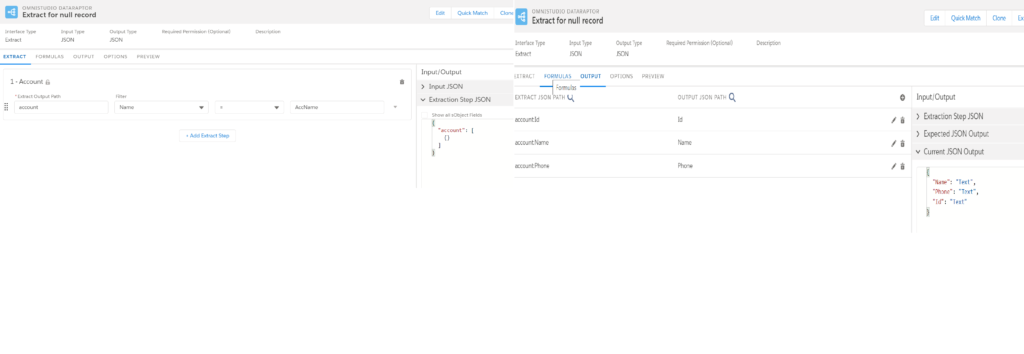
Next, create a DataRaptor Extract that will fetch Account data.
- Map all the required fields such as Name, Phone, or other relevant fields
- Ensure the DataRaptor is correctly configured and tested
This DataRaptor will act as the main data source for the FlexCard.
Step 2: Configure Interface Name and Input Mapping
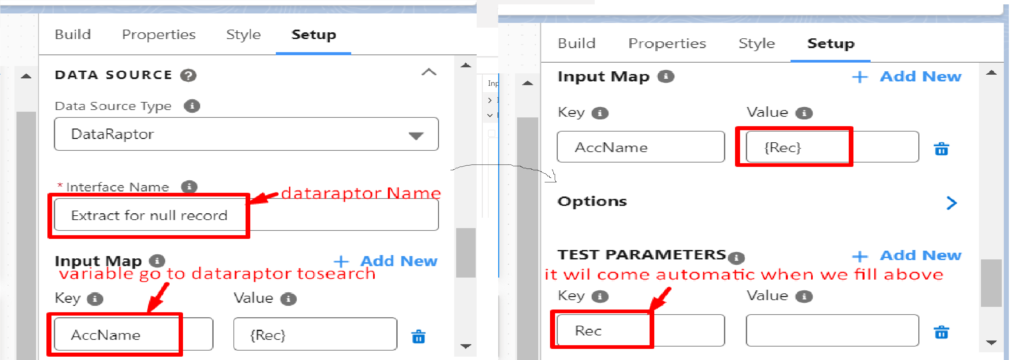
Move to the Setup section of the FlexCard.
- In the Interface Name field, search for and select the DataRaptor name
- Navigate to the Input Map section
- Add a new input mapping with the following values:
- Key: AccName
- Value: Rec
This configuration allows the FlexCard to pass a test parameter dynamically. The value entered in the test parameter will be used to search records in the DataRaptor.
After completing the mapping:
- Click Save & Fetch
Verify whether records are returned correctly
Step 3: Build the FlexCard UI and Configure Blank Card State
Now move to the Build section of the FlexCard.
- Drag the required fields from the Fields panel onto the canvas
- Add a State element (or clone an existing one)
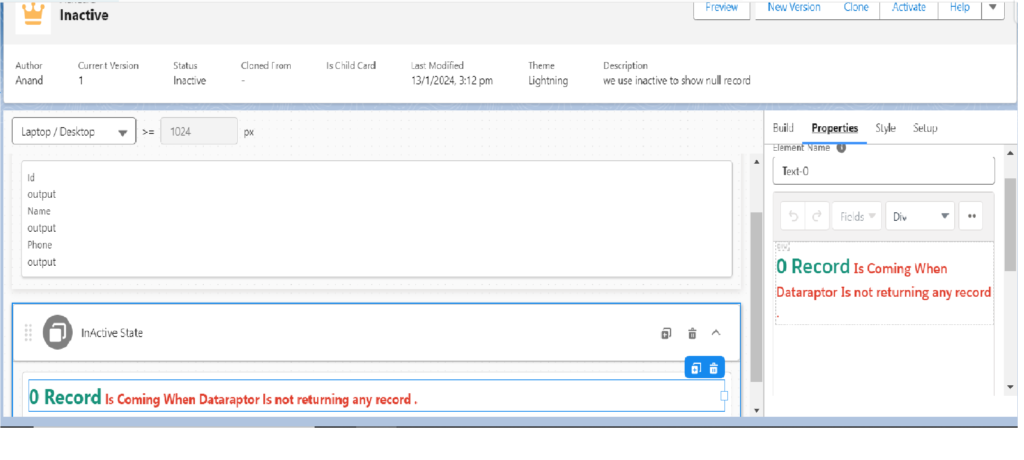
- Enable the Blank Card State option in the State element
Next, map the same DataRaptor name and input configuration used earlier to this State element.
To display a message when no records are found:
- Drag a Text element inside the Blank Card State
- Enter a custom message in the Text property, such as:
- “No records found. Please provide valid input to search.”
- “No records found. Please provide valid input to search.”
This message will be displayed whenever the DataRaptor returns zero records.
Step 4: Preview and Test the FlexCard
Preview the FlexCard to validate the functionality.
Test Case 1: With Input Parameter
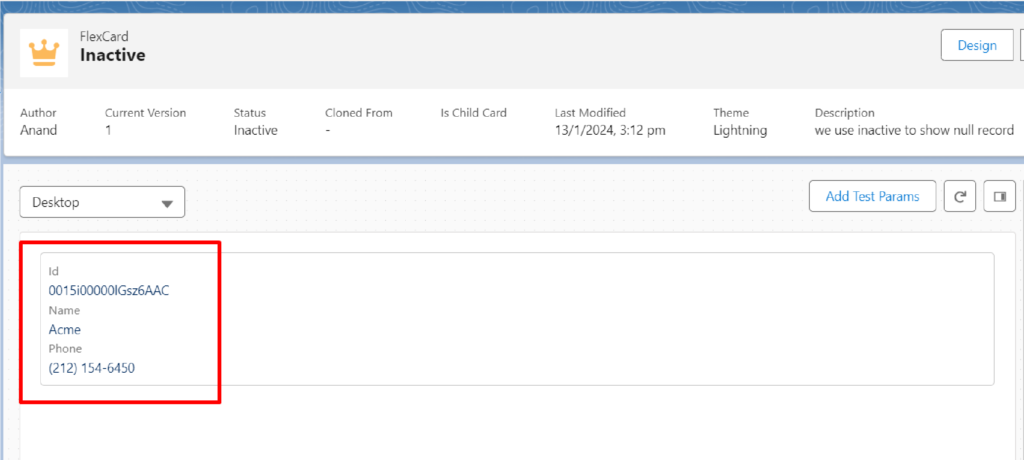
- Click Add Test Params
- Enter an Account name (for example, “Acme”) in the value field
- If a matching record exists, the FlexCard will display the record details
Test Case 2: Without Input Parameter
- Leave the test parameter blank
The DataRaptor query executes with an empty value, similar to:
SELECT Id, Name, Phone WHERE Name = ”
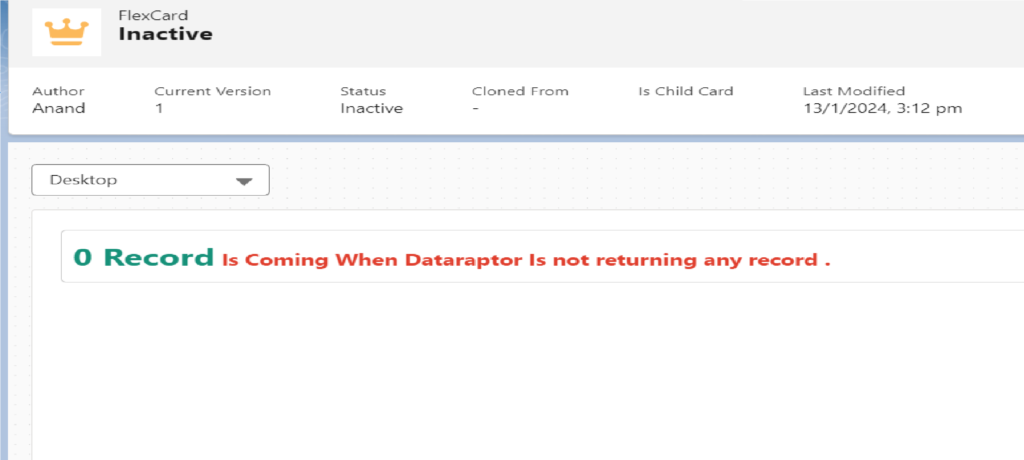
- This query returns null data
- The Blank Card State is triggered
- The custom message is displayed on the screen
If we leave it without filling the parametere it will get the query like “Select id ,Name ,phone where name = ” ”.
with this it return null data.
Why Use Blank Card State?
Using Blank Card State offers several benefits:
- Improves user experience
- Avoids empty or broken UI
- Clearly communicates no-data scenarios
- Supports dynamic search-based use cases
- Reduces confusion during testing and runtime
It is especially useful when working with search parameters, filters, or optional inputs.
Best Practices
- Always provide a meaningful message in the Blank Card State
- Keep the UI simple and informative
- Test both data and no-data scenarios
- Ensure input mappings are consistent across states
- Avoid complex logic inside the Blank Card State
Conclusion
The Blank Card State in FlexCard is a simple yet powerful feature that helps handle zero-record scenarios effectively. By configuring a State element with a Blank Card State, you can display custom messages and maintain a clean, user-friendly interface even when no data is returned.
This approach ensures that FlexCards behave predictably and provide clear feedback to users, making your OmniStudio implementations more robust and professional.