
Salesforce CPQ (Configure, Price, Quote) provides a powerful feature called Product Bundles, which allows businesses to group related products and sell them together as a single package. Bundling helps improve sales efficiency, ensures correct product combinations, and offers customers a complete solution instead of individual items.
In this blog, we will learn how to create Product Bundles in Salesforce CPQ, starting from product creation to adding bundle options.
What Is a Product Bundle in CPQ?
A Product Bundle is a collection of related products or services sold together under one main product. For example, a mobile phone bundle may include accessories like a charger, earphones, and tempered glass.
In CPQ:
- One product acts as the Bundle (Parent Product)
- Other products act as Options (Child Products)
- Options are added automatically when the bundle is selected in a quote
This ensures accuracy, consistency, and faster quote creation.
Steps to Create a Product Bundle in Salesforce CPQ
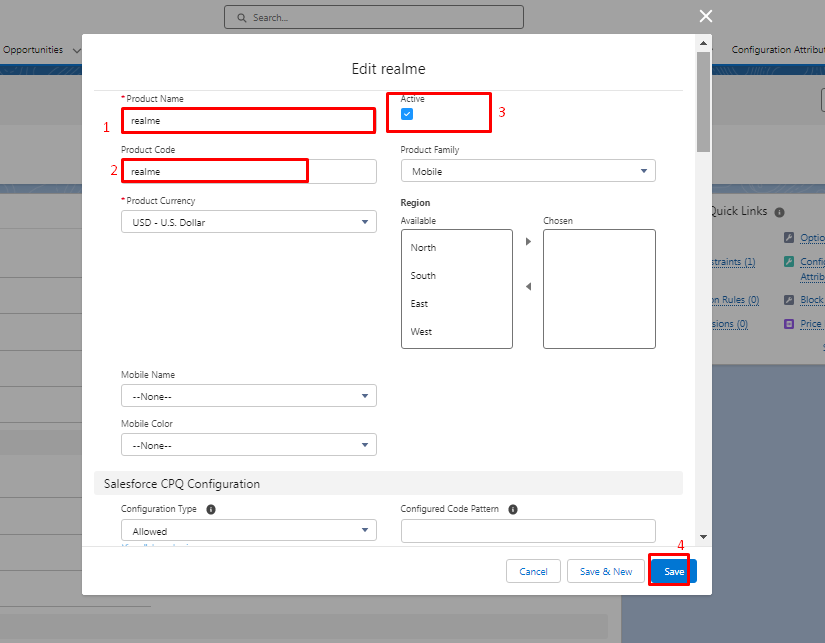
Step 1: Create the Main Bundle Product
First, we need to create the main product that will act as the bundle.
- Go to the Products tab in your CPQ org
- Click on the New button
- Enter the Product Name
- Check the Active checkbox so the product is available for use
This product will serve as the parent bundle.
Step 2: Enter Product Code and Save
After entering the basic details:
- Add a Product Code (unique identifier for the product)
- Click on the Save button
The product record is now created, but pricing and bundle options still need to be configured.
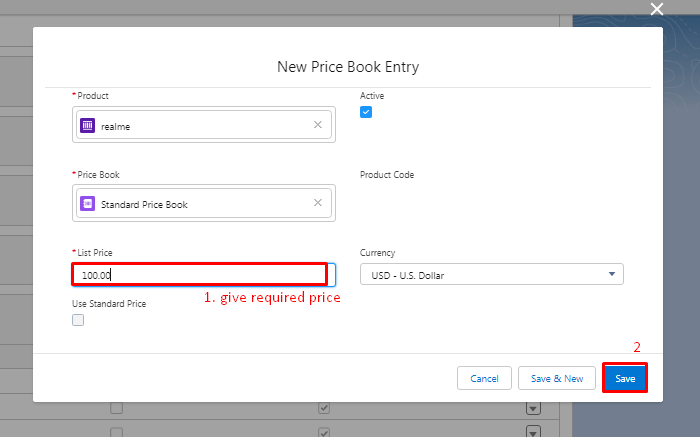
Step 3: Add Price to the Bundle Product
Every CPQ product must have a price to be selectable in a quote.
- Open the product record
- Click on the Related tab
- Navigate to Price Books
- Click on Add Standard Price
- Enter the product price
- Click Save
Now, the bundle product has a standard price.
Step 4: Create Option Products for the Bundle
Next, create all the products that will be part of the bundle.
Examples of bundle options:
- Charger
- Tempered Glass
- Earphones
- Warranty Extension
For each option product:
- Go to Products
- Click New
- Enter Product Name and Product Code
- Mark it as Active
- Add a Standard Price using the Price Book
Repeat this process for all products you want to include in the bundle.
Step 5: Add Product Options to the Bundle
Now, link the option products to the main bundle product.
- Open the main bundle product
- Go to the Related tab
- Find Options
- Click on New
Here, you define how the child products behave inside the bundle.
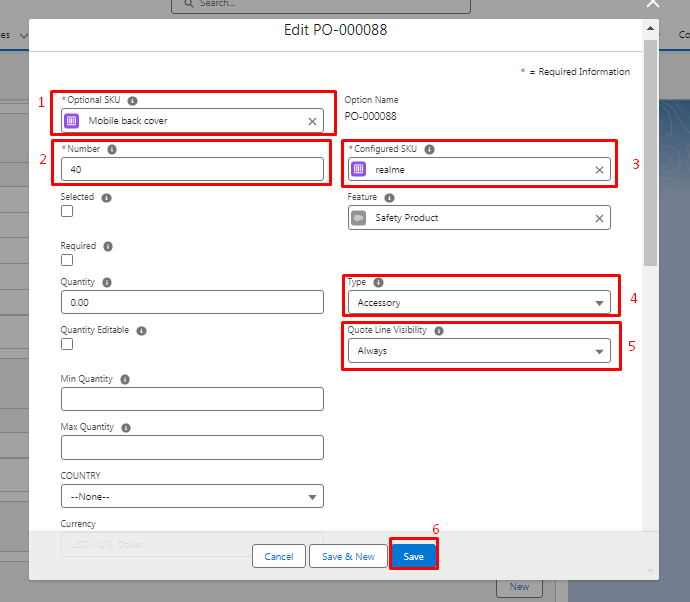
Step 6: Configure Bundle Option Fields
While creating a Product Option, fill in the following key fields:
- Optional SKU: Select the child product (e.g., Charger)
- Quantity: Number of units included
- Required: Check this if the option must be included
- Min/Max Quantity: Control how many units can be selected
After entering the details:
- Click Save
This links the option product to the bundle.
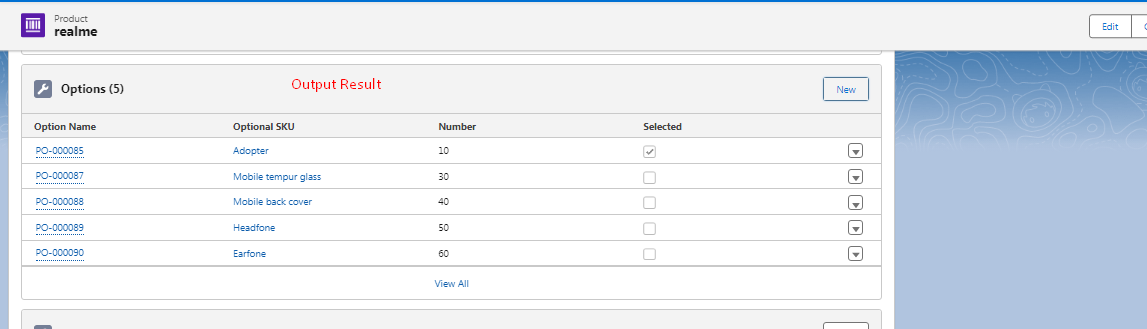
Step 7: Add Remaining Products to the Bundle
Repeat the same process to add all remaining products:
- Charger
- Tempered Glass
- Accessories
- Services
Each product added becomes part of the bundle and will appear automatically when the bundle is selected in a quote.
How Product Bundles Work in Quotes
Once the bundle is configured:
- When a user adds the bundle product to a quote
- All associated option products appear automatically
- Required options are included by default
- Optional products can be selected or deselected based on configuration
This reduces manual effort and ensures correct product combinations.
Conclusion
Creating Product Bundles in Salesforce CPQ is an essential skill for CPQ implementation and sales operations. By defining a parent product, assigning prices, and linking child products as options, you can build flexible and powerful bundles that improve quote accuracy and customer experience.
Product Bundles help streamline sales processes, prevent configuration errors, and deliver complete solutions in a single click.
Pingback: How to Configure Products in Quote line. (Salesforce CPQ)