

OmniScript is a powerful tool used to create guided, dynamic user experiences by integrating data from various Salesforce sources. Often, data fetched through OmniScript comes from DataRaptors, which can return one or multiple records depending on the query. In many real-time scenarios, it becomes important to count how many records are returned and display or use that count within the OmniScript flow.
In this article, we will learn how to count records in OmniScript data coming from a DataRaptor using a Formula element. This approach is useful when you need to validate data presence, control screen visibility, or simply display the total number of records to the user.
Understanding the Use Case
Consider a scenario where an OmniScript fetches account records using a DataRaptor Extract. Based on the result, you may want to:
- Display how many records were returned
- Handle situations where no records are found
- Drive conditional logic in the OmniScript flow
- Improve user awareness by showing record counts on screen
To achieve this, OmniScript provides a Formula element, which can be used to apply functions like COUNT() on the incoming data.
Example Overview
In this example, we will:
- Create an OmniScript
- Use a DataRaptor Extract as a data source
- Count the number of records returned
- Display the record count using a Text Block
This method works for any object, as long as the data is returned in a node from the DataRaptor.
Step 1: Create an OmniScript and Add a DataRaptor.
Start by creating a new OmniScript based on your business requirement. Once the OmniScript is created:
- Drag a DataRaptor Extract element onto the OmniScript canvas.
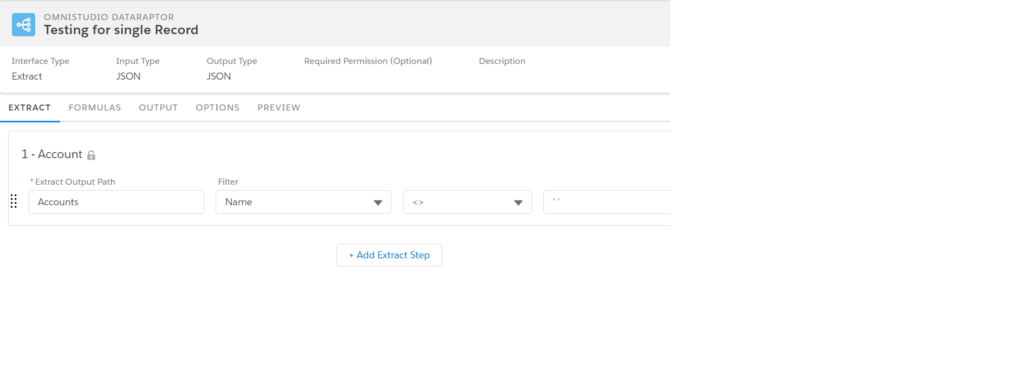
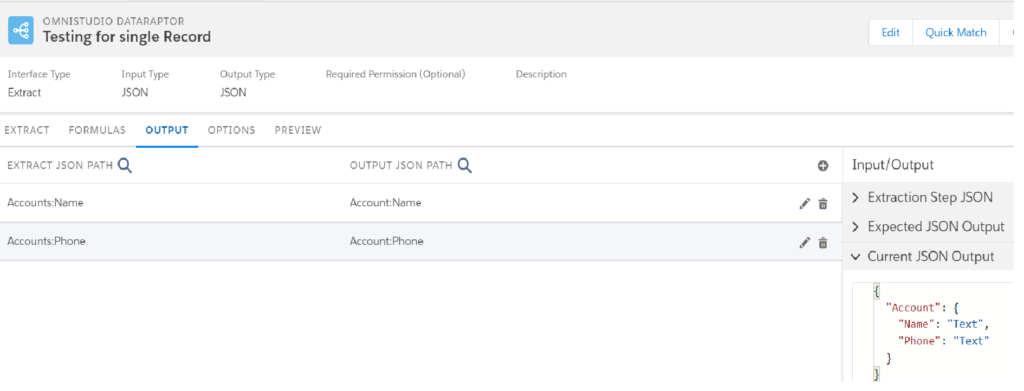
- Configure the DataRaptor to fetch the required records (for example, Account records).
- Map all the fields that you want to retrieve from Salesforce.
Ensure that the DataRaptor is correctly configured and returns data successfully.
Next, add the following elements to the OmniScript:
- A Formula element (to count records)
- A Text Block element (to display the result)
Once added, select the DataRaptor element on the OmniScript page and map the fields properly as required.
Step 2: Identify the Data Node Returned by DataRaptor
After configuring the DataRaptor, preview the OmniScript to inspect the data structure.
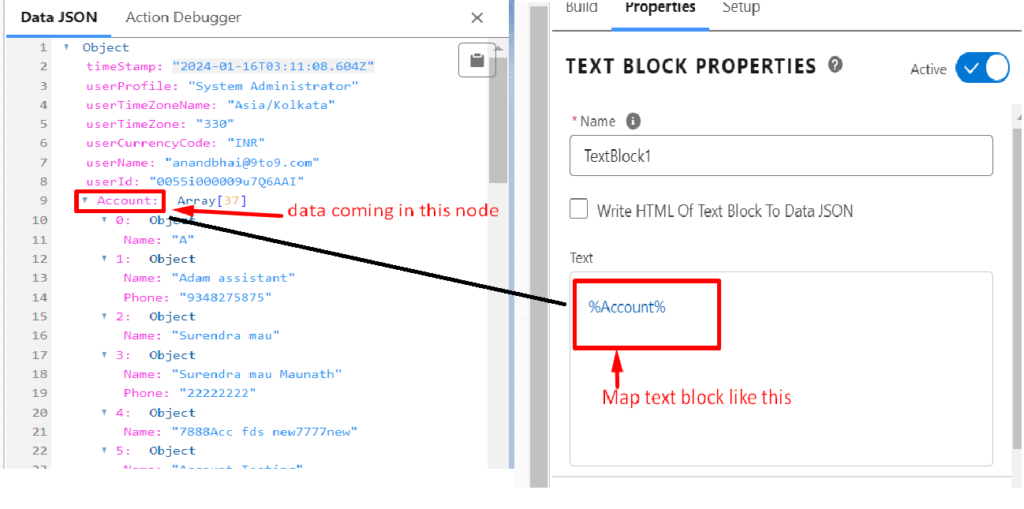
To identify the node where records are coming from:
- Use a Text Block
- Pass the node name inside double percentage signs (%%)
Example:
%%Account%%
This will render the data on the screen and help you understand the exact node name returned by the DataRaptor. This step is critical because the COUNT function depends on the correct node reference.
Step 3: Add a Formula to Count Records
Once you know the node name (for example, Account), you can create a Formula to count the records.
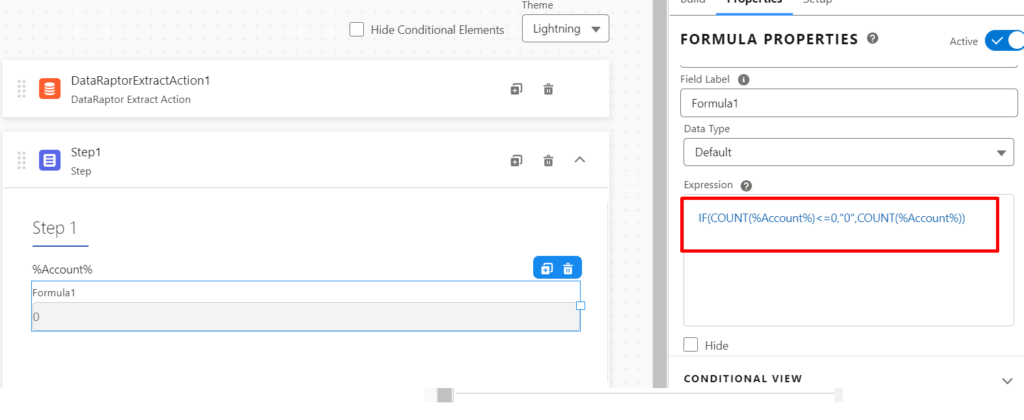
Add a Formula element and write the following formula:
IF(COUNT(%Account%) <= 0, “0”, COUNT(%Account%))
Explanation of the Formula:
- COUNT(%Account%) calculates the number of records returned in the Account node
- The IF condition checks whether the count is zero or less
- If no records are returned, it explicitly displays 0
- Otherwise, it displays the actual count
This approach ensures that the OmniScript handles both scenarios—when records exist and when no records are returned.
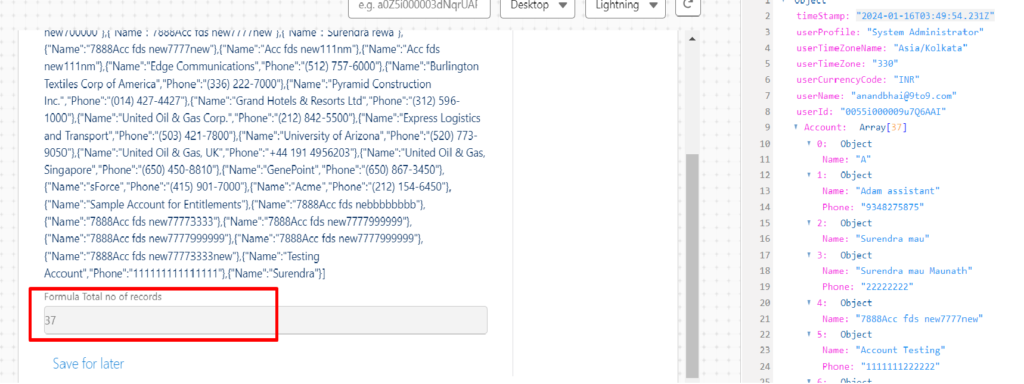
Step 4: Preview the OmniScript and Verify the Output
After configuring the formula:
- Preview the OmniScript
- Run the DataRaptor
- Observe the count displayed in the Text Block
If the DataRaptor returns records, the formula displays the correct count.
If the DataRaptor returns zero records, the formula safely displays 0 instead of blank or undefined values.
This ensures a clean and user-friendly experience.
Why Use a Formula to Count Records?
Using a Formula element to count records in OmniScript offers several benefits:
- Avoids custom Apex logic
- Improves performance and simplicity
- Enables dynamic UI behavior
- Helps in decision-making and validations
- Works seamlessly with DataRaptor Extract results
This method is especially useful in guided flows where data availability affects navigation or screen visibility.
Conclusion
Counting records in OmniScript using a DataRaptor and Formula element is a simple yet powerful technique. By identifying the correct data node and applying the COUNT() function, you can dynamically determine how many records are returned and use that information throughout the OmniScript.
This approach helps improve data handling, enhances user experience, and ensures your OmniScript behaves intelligently based on real-time data. Whether you are displaying information or driving logic, record counting is an essential skill when working with OmniScript and DataRaptors.