
Salesforce CPQ (Configure, Price, Quote) allows sales teams to easily add, configure, and price products on a Quote Line. Product configuration is one of the most important features of CPQ because it ensures that the right products, options, and prices are selected according to business rules.
In this post, we will understand how products are configured in Quote Lines, what objects are involved, and how configuration works step by step.
What Is a Quote Line in Salesforce CPQ?
A Quote Line represents a product added to a Quote.
Each product added to a Quote creates a corresponding Quote Line record.
A Quote Line stores:
- Product information
- Quantity
- Price
- Configuration details
- Selected options
- Pricing adjustments
Key Objects Involved in Product Configuration
Before configuring products, it is important to understand the main CPQ objects involved:
Product
- Base item that can be sold
- Can be standalone or configurable
Product Option
- Represents optional or required child products
- Used only with configurable products
Option Group
- Groups related product options
- Controls selection behavior (single-select or multi-select)
Quote Line
- Stores the final configuration selected by the user
Configuration Attributes
- Used to pass values between parent and child products
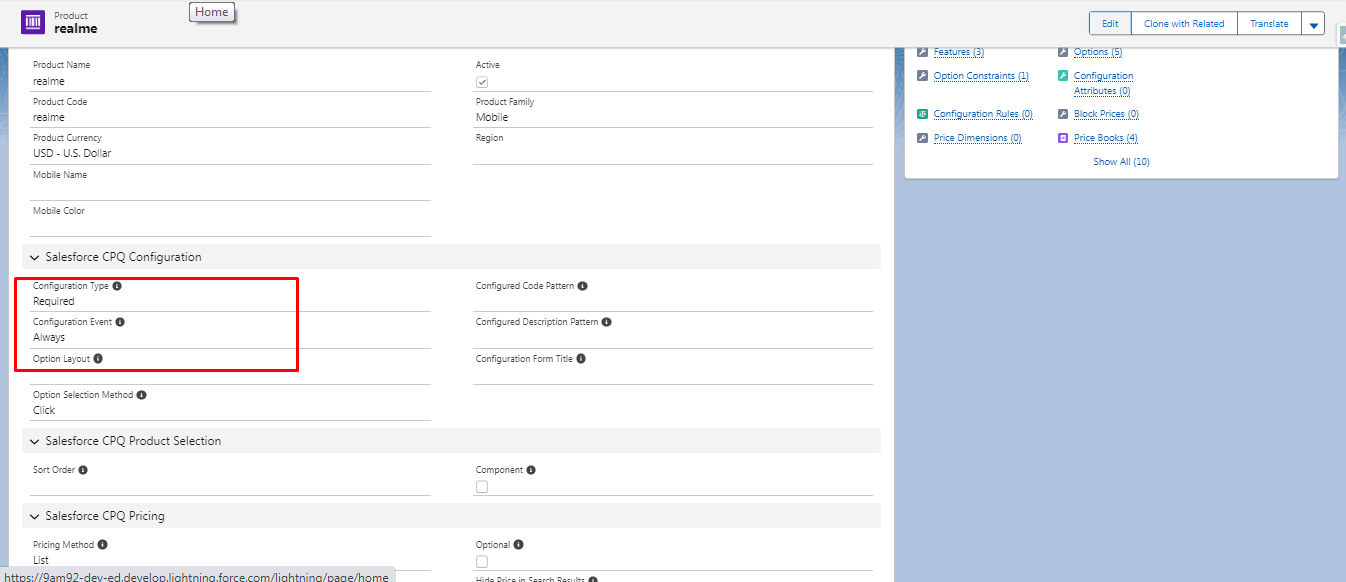
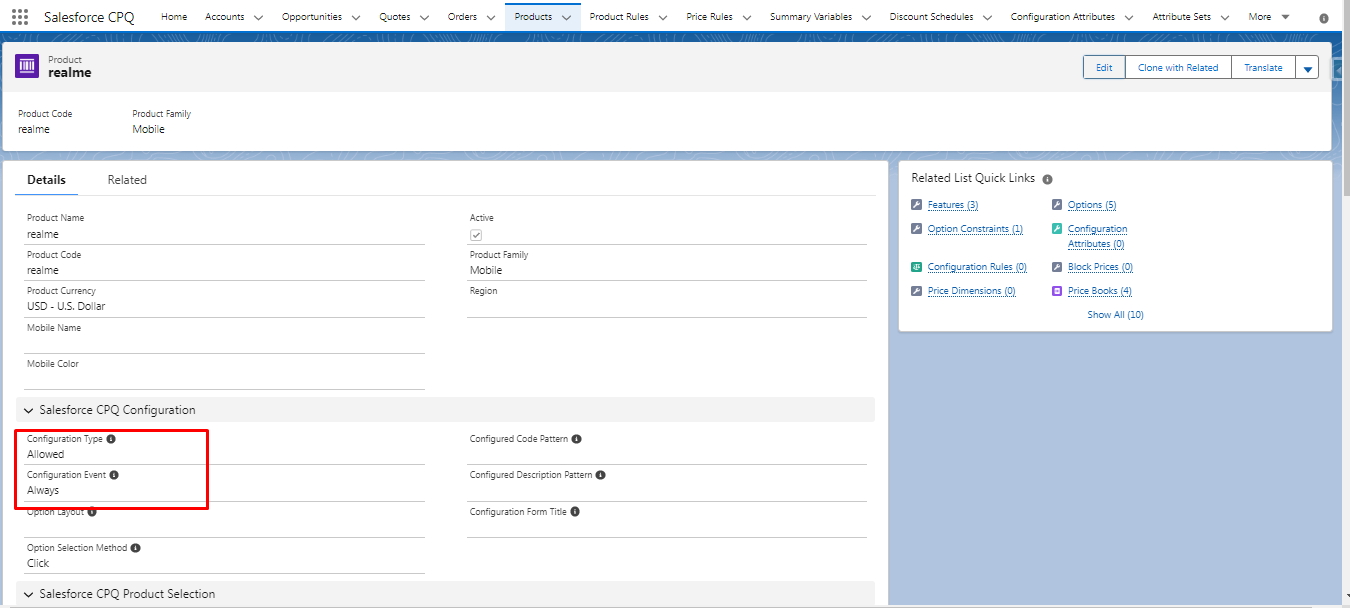
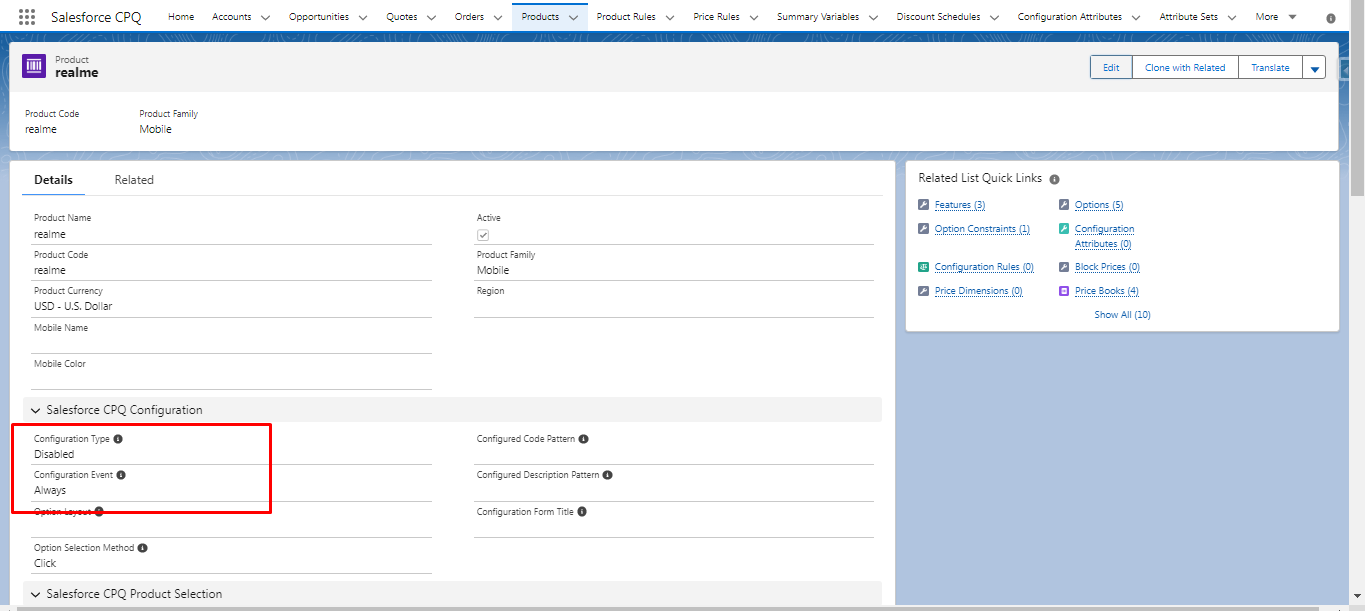
Step 1: Create a Configurable Product
- Go to Products
- Create or open a Product
- Set:
- Configurable = True
- Active = True
- Configurable = True
- Save the product
This enables the product to support configuration during quote creation.
Step 2: Create Product Options
Product Options define which child products can be selected.
- Go to Product Options
- Create a new Product Option
- Fill:
- Configured Product (Parent Product)
- Optional Product (Child Product)
- Required (True/False)
- Quantity
- Configured Product (Parent Product)
- Save the record
Each Product Option becomes selectable in the Quote Line Editor.
Step 3: Create Option Groups (Optional but Recommended)
Option Groups help organize product options logically.
- Go to Option Groups
- Create a new Option Group
- Set:
- Name
- Configured Product
- Type:
- Select (single)
- Multi-Select
- Select (single)
- Name
- Save
Assign Product Options to Option Groups to control selection behavior.
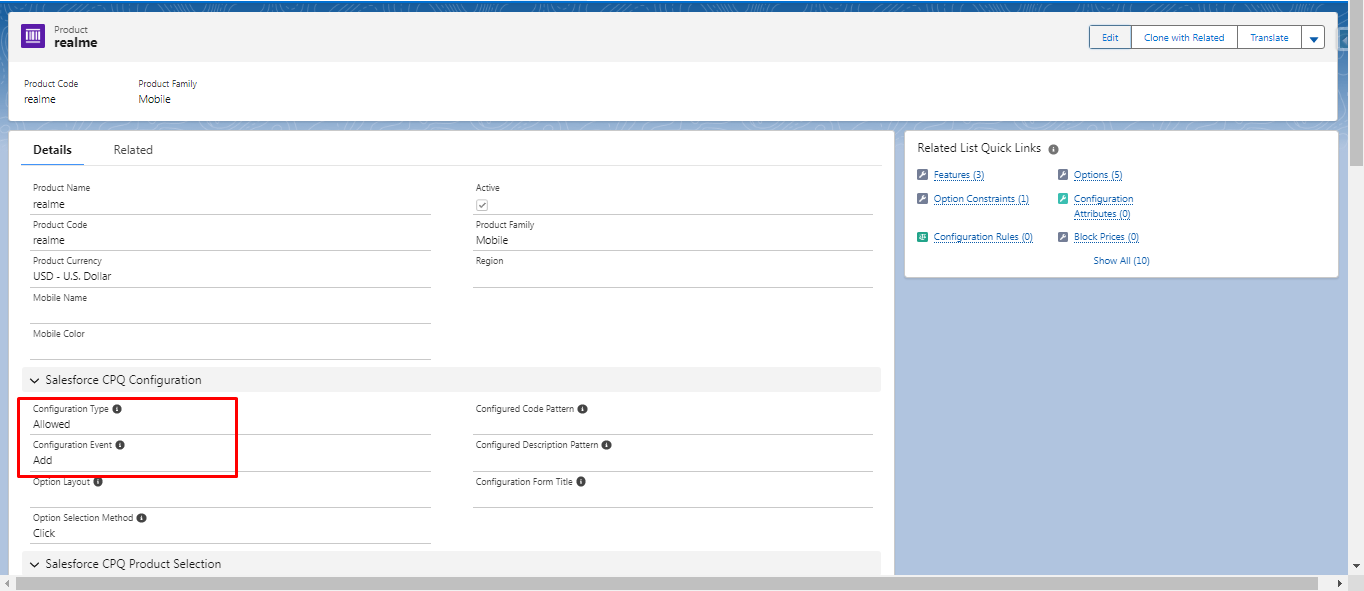
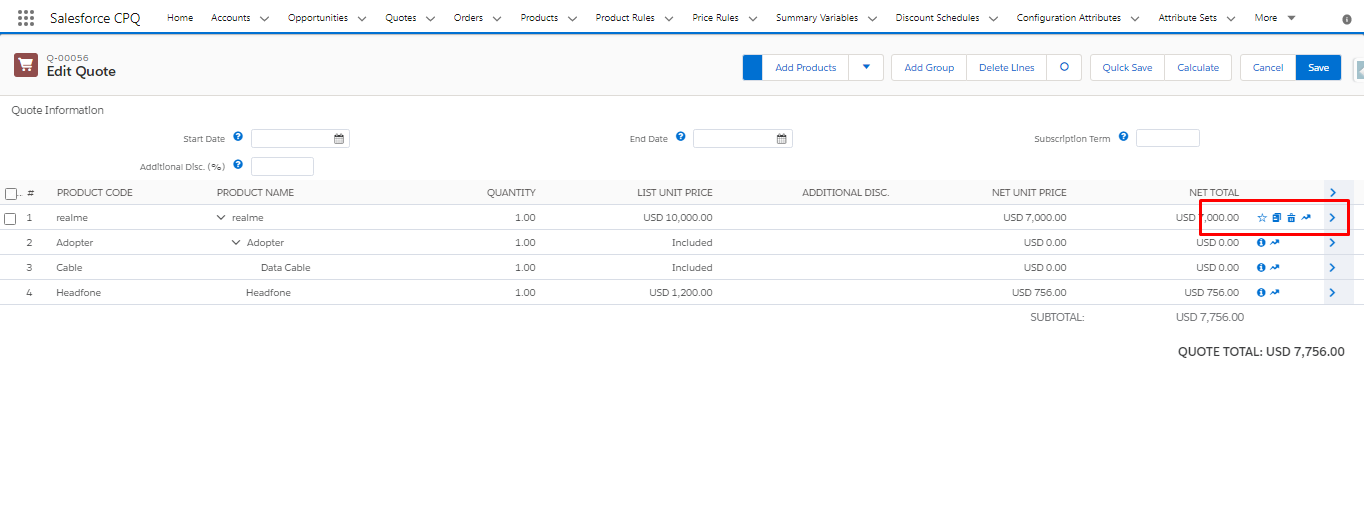
Step 4: Define Configuration Rules (If Needed)
Configuration Rules enforce business logic.
Common use cases:
- Auto-select options
- Prevent incompatible selections
- Require specific options
Configuration Rules include:
- Selection Rules
- Validation Rules
- Alert Rules
- Filter Rules
These rules automatically apply during Quote Line configuration.
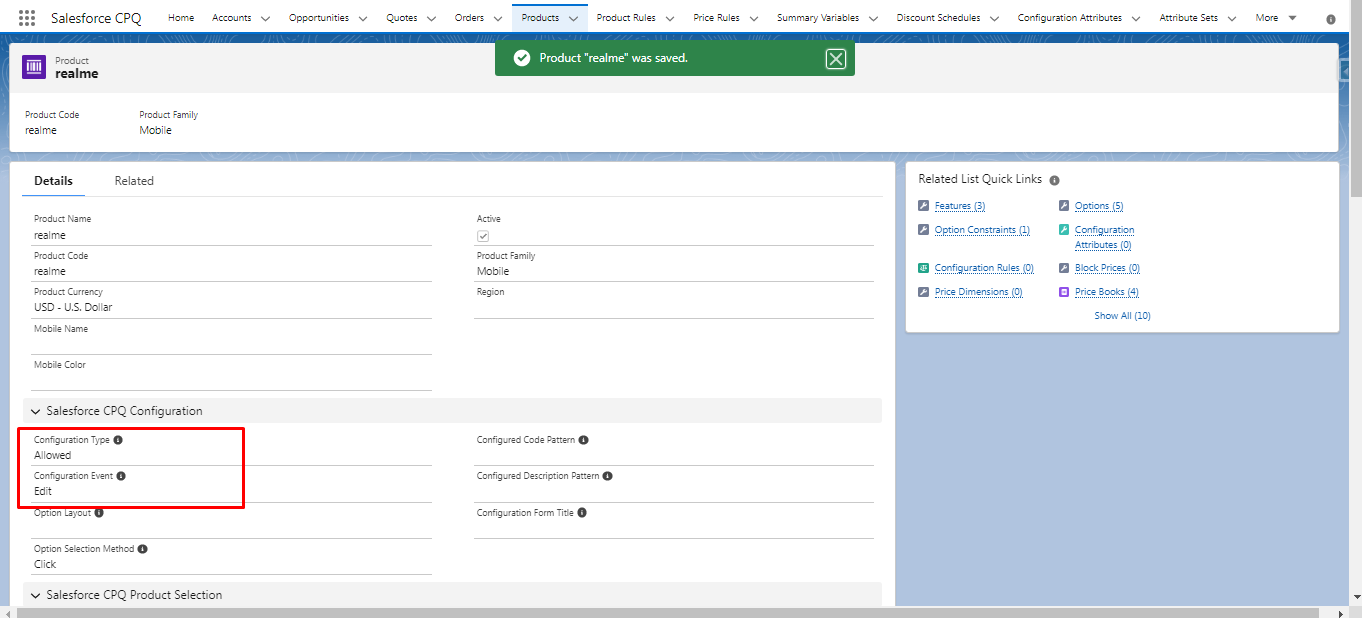
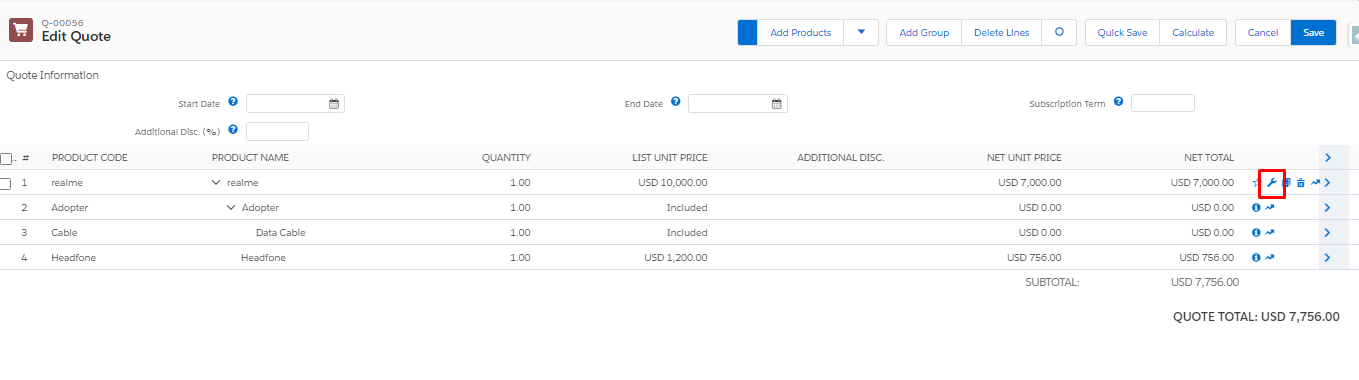
Step 5: Add Product to Quote
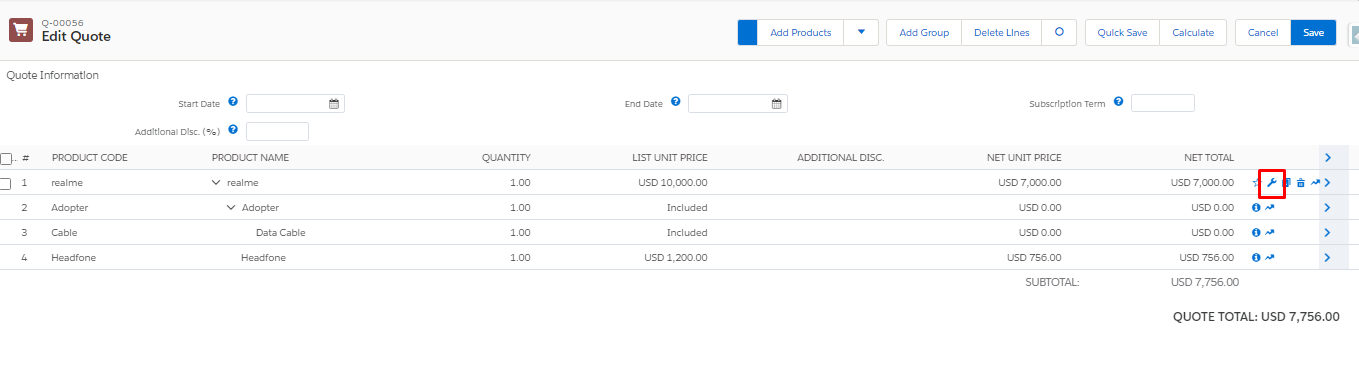
- Open a Quote
- Click Edit Lines
- Select the configurable product
- Click Add Products
- Click Configure
This opens the Quote Line Editor (QLE).
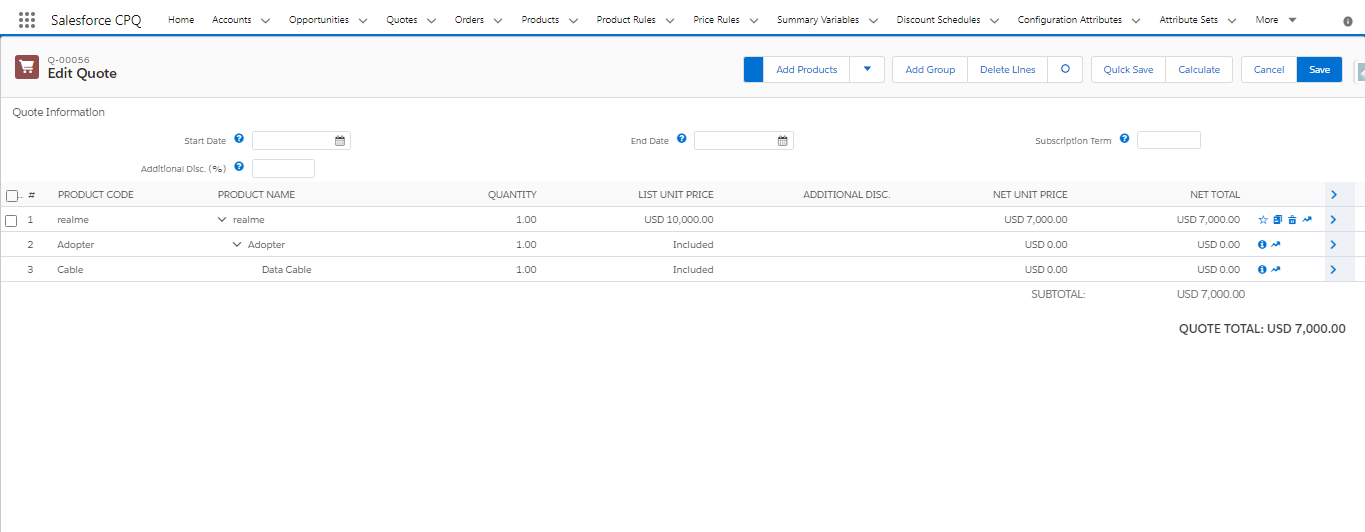
Step 6: Configure Product in Quote Line Editor
Inside the Quote Line Editor:
- Product options appear based on:
- Product Options
- Option Groups
- Configuration Rules
- Product Options
You can:
- Select required options
- Choose optional products
- Adjust quantities
- View real-time pricing updates
All selections are stored in Quote Line records.
Step 7: Use Configuration Attributes (Advanced)
Configuration Attributes allow data sharing between products.
Example use cases:
- Parent product value controlling child product behavior
- Dynamic pricing
- Conditional option visibility
Steps:
- Create a Configuration Attribute
- Assign it to the parent product
- Map it to child product fields
- Use it in rules or pricing logic
Step 8: Pricing and Calculation on Quote Line
Once configuration is complete:
- CPQ calculates:
- List Price
- Net Price
- Discounts
- Bundled pricing
- List Price
- Prices roll up from child Quote Lines to the parent Quote Line
Pricing Rules can further adjust pricing dynamically.
Step 9: Save Configuration
After completing configuration:
- Click Save
- Quote Lines are created/updated
- Configuration is locked unless edited again
The configured Quote Line is now ready for approval, PDF generation, or order creation.
Common Use Cases
- Bundled products (hardware + software)
- Subscription-based pricing
- Tiered pricing models
- Mandatory add-ons
- Industry-specific product catalogs
Best Practices
- Always use Option Groups for better UI
- Keep Configuration Rules simple
- Use Required flags carefully
- Test configurations in Quote Line Editor
- Avoid unnecessary pricing rules
Common Mistakes to Avoid
- Forgetting to mark product as Configurable
- Missing required Product Options
- Incorrect Option Group selection type
- Over-complicated rules causing performance issues
Conclusion
Configuring products in Salesforce CPQ Quote Lines ensures accurate pricing, valid product combinations, and a smooth sales experience. By using configurable products, product options, option groups, and rules correctly, businesses can automate complex sales scenarios without manual intervention.
Nice post, it’s very helpfull.
Thanks