

FlexCards are a powerful UI component used to display data dynamically in Salesforce OmniStudio. While FlexCards work efficiently with declarative data sources like DataRaptors and Integration Procedures, there are scenarios where custom business logic is required. In such cases, calling an Apex class from a FlexCard becomes essential.
This article explains how to call an Apex class in a FlexCard, when it is needed, and how the data flows from Apex to the FlexCard UI.
Why Call an Apex Class from a FlexCard?
Although OmniStudio provides strong declarative tools, Apex is required in situations such as:
- Complex business logic that cannot be handled declaratively
- Data processing across multiple objects
- Advanced validations or calculations
- External integrations that require custom handling
- Performance optimization for large datasets
Calling an Apex class allows FlexCards to display processed, real-time data while keeping the UI responsive.
High-Level Architecture
The typical flow looks like this:
- FlexCard calls an Integration Procedure
- Integration Procedure invokes an Apex class
- Apex processes the logic and returns data
- Integration Procedure passes the response back
- FlexCard renders the data on the UI
FlexCards cannot call Apex directly, so Integration Procedures act as the bridge.
Step 1: Create an Apex Class
Start by creating an Apex class that contains the required logic. The class must:
- Be declared as global
- Have a @AuraEnabled method
- Return data in a format supported by OmniStudio (Map or List)
Sample Apex Class
global class AccountDataService {
@AuraEnabled
global static List<Account> getAccounts() {
return [
SELECT Id, Name, Industry
FROM Account
LIMIT 5
];
}
}
This example fetches basic Account data that will be displayed in the FlexCard.
Step 2: Create an Integration Procedure
Next, create an Integration Procedure to call the Apex class.
- Navigate to Integration Procedures
- Create a new Integration Procedure
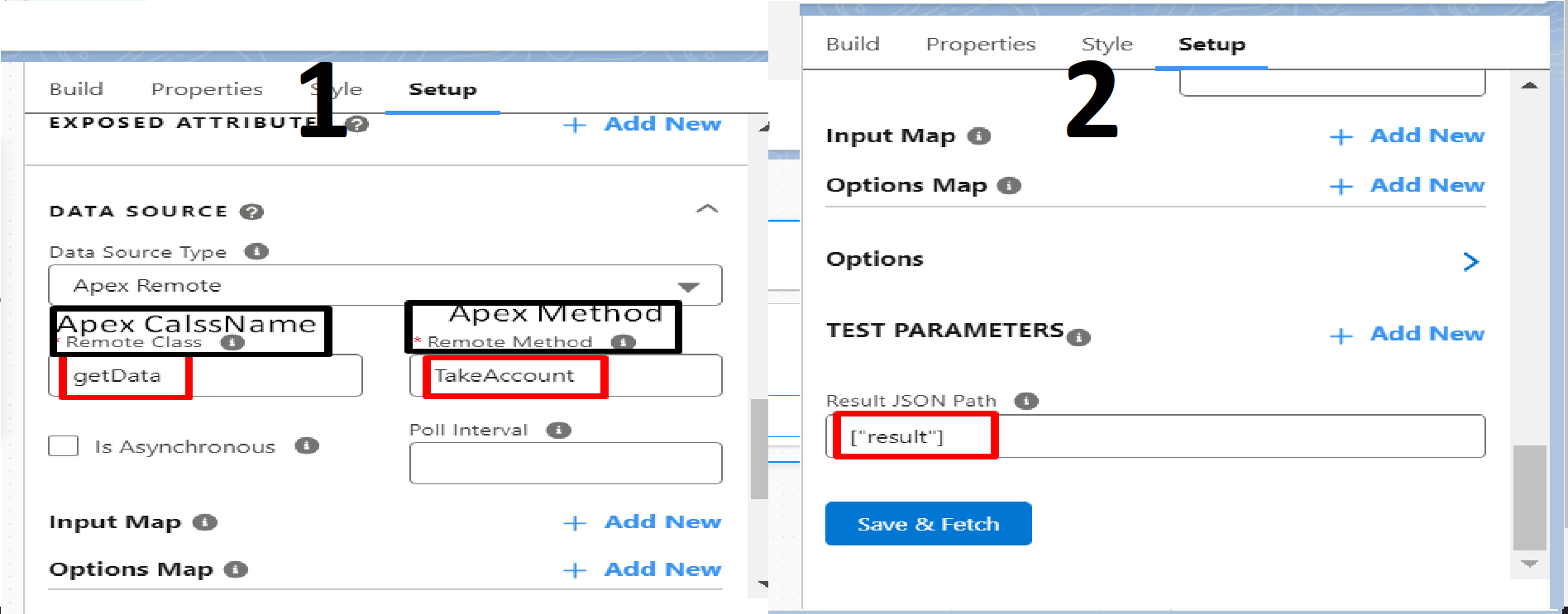
- Add a Remote Action element
- Select Apex as the action type
- Enter the Apex class name and method name
Example Configuration:
- Type: Apex
- Class Name: AccountDataService
- Method Name: getAccounts
This step enables OmniStudio to execute the Apex logic.
Step 3: Configure the Response Mapping
Once the Apex method executes, it returns data to the Integration Procedure.
- Ensure the response is correctly mapped
- Use the Response Node to capture returned data
- Validate the response using Preview mode
This ensures that the data structure is accessible to the FlexCard.
Step 4: Create or Update the FlexCard
Now create or update a FlexCard to consume the Integration Procedure.
- Open the FlexCard designer
- Set the Data Source Type to Integration Procedure
- Select the Integration Procedure created earlier
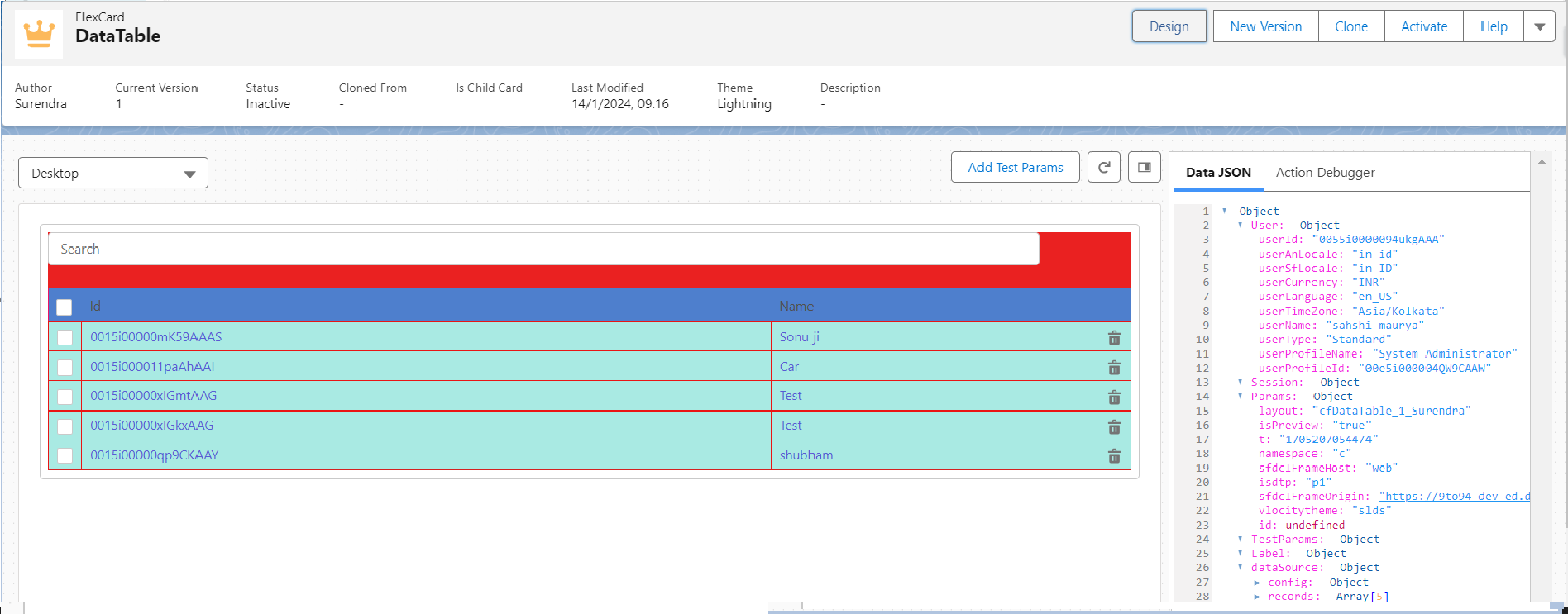
- Map the response fields to the FlexCard elements
At this stage, the FlexCard is connected to Apex indirectly via the Integration Procedure.
Step 5: Display Data on the FlexCard
Add UI elements such as:
- Text fields
- Data tables
- Icons or conditional styling
Bind these elements to the response nodes returned by the Integration Procedure.
For example:
{{Account.Name}}
{{Account.Industry}}
This displays the data retrieved from the Apex class.
Step 6: Preview and Test
Preview the FlexCard to verify:
- Apex class is executed successfully
- Integration Procedure returns data correctly
- FlexCard displays the expected output
- No runtime errors occur
Testing ensures smooth data flow from Apex to UI.
Best Practices for Calling Apex in FlexCards
To ensure performance and maintainability, follow these best practices:
- Keep Apex logic lightweight and efficient
- Avoid unnecessary SOQL queries
- Always handle exceptions in Apex
- Return only required fields
- Use Integration Procedures for orchestration
- Test with large datasets to avoid performance issues
These practices help maintain scalable and reliable FlexCard implementations.
Common Use Cases
Calling Apex from FlexCards is commonly used for:
- Aggregated or calculated data
- Conditional record processing
- External API data handling
- Custom eligibility checks
- Complex data transformations
This approach extends FlexCard capabilities without compromising flexibility.
Conclusion
Calling an Apex class in a FlexCard is a powerful technique that enables advanced data handling in OmniStudio applications. While FlexCards do not directly invoke Apex, using an Integration Procedure as a bridge ensures a clean and scalable architecture.
By combining declarative tools with Apex logic, developers can build dynamic, high-performing FlexCards that meet complex business requirements while maintaining a responsive user experience.